How to Share or Distribute My Flipbook
How to Share or Distribute My Flipbook?
Once your edition is ready to be shared, there are several ways to use the link options presented. With Dcatalog, you can distribute your digital edition in many different ways. This article will guide you through all the available options and help you understand which distribution method works best for your goals. By knowing when and how to use each link, you can ensure your content reaches the right people with minimal effort.
Follow these steps to check our distribution options!
1 Click on Links when you are on the Dashboard, under My Editions.
2 The Embed Links box will then pop up.
Link Type Definitions:
Short HTML5
The short html5 link is best for sharing via social media or as part of your email signature. This link is created using the Account Name and Edition Title.
HTML5 Link
The html5 link is a long link, typically used for embedding on a site. You can also use this if you do not wish to display the account name or edition title when you share the link.
Auto Latest Link
The auto latest link shows the latest edition for a specified template. If you make a lot of updates to the content, you will want to use this link.
Gif Link
This link lets you embed the flipping image directly on your site. When inserting it, ensure that you copy only this exact URL—nothing before or after it: When you click on Copy Link button, make sure to only copy the highlighted part of the Url below.
Note: This is not an active link—it's provided here only as an example of the correct format.
Copy the link beginning at the https: as seen below.
Mini Flipper
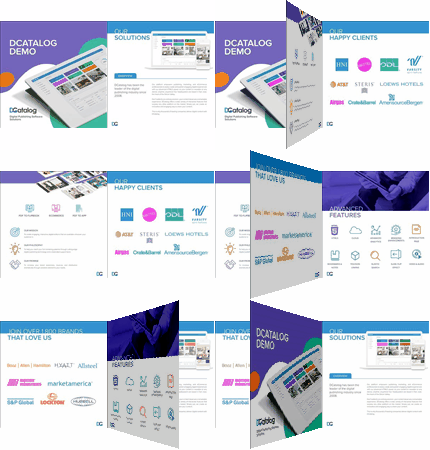
The GIF Mini Flipper allows you to display a small, animated preview of your flipbook. Many users include it in their email signatures or other promotional materials. To use it, simply copy and paste the GIF into your email or wherever you plan to showcase it.
For best results, we recommend placing the short HTML5 link directly beneath the GIF, like this:
https://Admin-Walkthrough.dcatalog.com/v/WalkthroughGuide/ (this is just an example, not a working link)
Static Image
The static image is the cover of your flipbook. You can use it just like the GIF Mini Flipper—by placing the static image above the short HTML5 link and adding it to your email signature or other communications.
As seen below.
Reindex
You can reindex your links to refresh them with the newest information. You sometimes need to use the reindex button if your content isn't displaying correctly.
Click the reindex button. You will see this box pop up:
Press "Go!" and the reindex will start:
There is no way to pick a certain link to reindex, so use this action with caution when uploading new content.
Troubleshooting
Why Am I Getting a 404 Error?
Sometimes, when you share your link, you may encounter a 404 error even though you uploaded your PDF, designed it, and published it, why isn't it active?
There are a few reasons for that:
1. Content isn't activated: This means that you did not toggle the new link to Active status. To resolve this, simply toggle the link to Active.2. Outdated: This refers to content using an old link (if you changed the link name, or otherwise updated the link on the backend). To resolve this, check that you are using the updated link, or that any changes made have not affected the link you are trying to use.3. Mistyped: Or, it could simply be that you mistyped the url address. Check that you typed it correctly into the search bar.
If you copied and pasted the link, however, it's most likely one of the 2 reasons above.
Can I change my URL?
The URL link is created using the account name (in this sample, it is MyDemo) and the edition title (in this sample, it is DemoTest2).
https://MyDemo.dcatalog.com/v/DemoTest2/
https://MyDemo.dcatalog.com/v/DemoTest2/
Can I have an evergreen URL?
Yes. If your goal is to keep an evergreen URL, you should keep the same edition title and simply upload a new PDF into the existing edition/template. This allows you to update or refresh your content while preserving the same URL and all existing settings, links, and configurations. When you change the URL, you are changing the edition title. What is static is the Account Name, as that is part of the URL. To change the URL, simply edit the edition title or upload a new PDF into the same template to keep the same settings but give the content a new edition title.
How to use Gif in Email?
If you would like to use the gif flipping image in an email, simply copy and paste the gif flipping image. Here's how:
- On the main dashboard, under My Editions, click the Link icon,
Now paste the image into your email or wherever you plan to use the gif flipping image:
**Please be aware that in some email browsers, such as Gmail, the image will not flip.**
