Renumber Pages

Renumber Pages

Renumber Pages

The Renumber Pages tool allows you to label pages according to the digital edition. For example, Page 1 may start on Page 3 so you will need to number the pages accordingly.

You will also need this tool should you make updates on your PDF.  If you add or delete a page, the page number on the actual PDF and the page count on the Navigation bar won't match anymore. The pages need to be updated. 

Follow the steps below to get to Renumbering tool:

1. Go to Edition Tools


2. Click on the Renumber Pages Tab

3.  Once you have decided where page 1 starts, you can press the renumber button and the pages will renumber starting with 1.


If your Catalog doesn't have page numbers yet and you need to add it without updating your PDF, you can activate the "Add Page Label" feature to automatically generate page numbers in your catalogs.

Follow the steps below to generate Page Numbers:

1. Go to Design Template
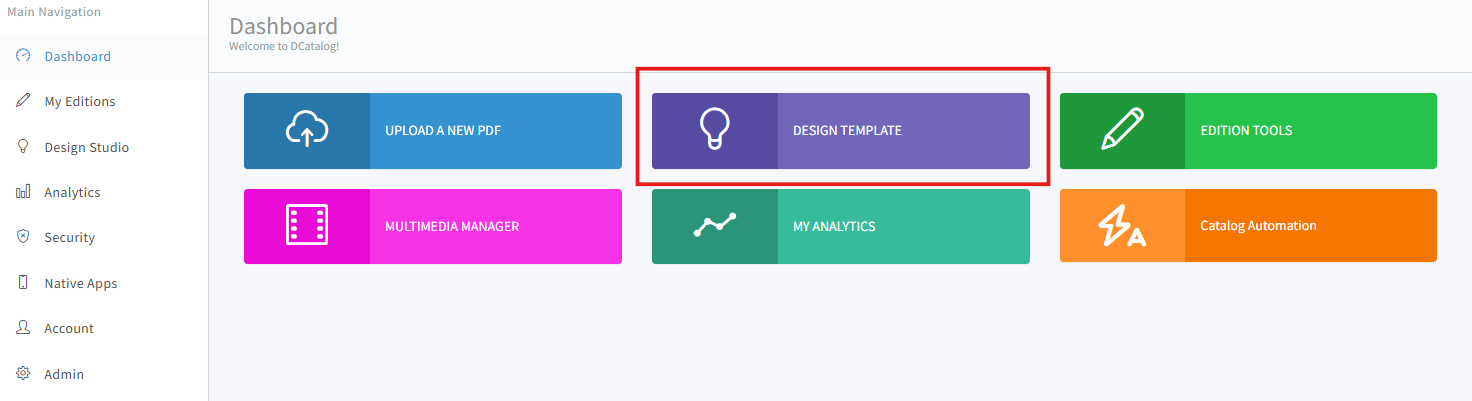
2. Then click the Advanced Feature tab

3. Click the Add Page Labels check box
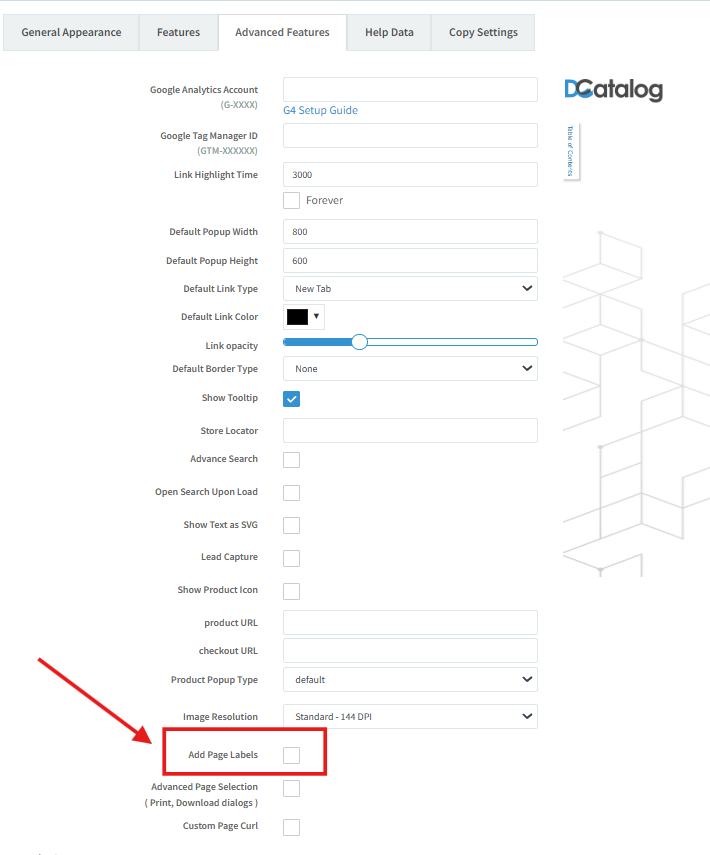

Note: If you have Table of Contents or will be adding TOC in your catalog, check if the page numbers matches in the TOC.
    • Related Articles

    • Replace Pages or Replace Multiple Pages

      What is the Replace Pages feature? The Replace Pages feature allows you to update individual pages in your digital edition in real time, without needing to upload a brand-new PDF. Whether you’ve spotted a typo or need to update some content, this ...
    • Add and Delete Pages

      Add or delete pages easily. Within Multimedia Manager go to > Navigation > Add Page or Delete Page: If you select Add Page, you will be prompted to upload the single-page PDF file. You can also add multiple pages as long as they are in order. Select ...
    • Edition Tools

      Edition Tools Edition Tools will help you set up your edition, with a table of contents, bookmarks, and more.  Renumber Pages The Renumber Pages  tool allows you to label pages according to the digital edition. For example, Page 1 may start on Page 3 ...
    • How can I download certain pages from the digital catalog?

      To download certain pages from the digital catalog, first check to make sure the viewer had the download button activated. If so, you will see this: Once you click on the button to download the PDF, you can choose to either download all of the pages, ...
    • Can you add internal bookmarks and export the pages with the bookmarks on them?

      Our customers have added bookmarks for some pages on the catalog screen. Can they export the pages with these bookmarks as pdf or send these pages by email? These bookmarks are just stored in the cache of the user's device. There is not way for them ...