DCatalog Analytics
DCatalog Analytics gives you a complete picture of how users interact with your editions, how many people are viewing them, where they come from, what devices they use, what they search for, which interactive elements they engage with, and how your catalogs drive shopping activity. The redesigned Analytics window brings all of this into a single dashboard with seven tabs, shared filters, and one-click exports on every report.
Excluding internal traffic
To keep your reports accurate, DCatalog automatically excludes your own activity from Analytics. Whenever a user logs into the DCatalog admin, their IP address is stored and any views from that address are excluded from tracking. This means that when you or your team open your editions to review them, or when the DCatalog team works on your account, those visits are not counted in your numbers.
As a result, your Analytics reflect genuine user activity. No additional setup is required; the exclusion happens automatically each time a user logs in.
Accessing Analytics
1. Click "My Analytics" on your Dashboard
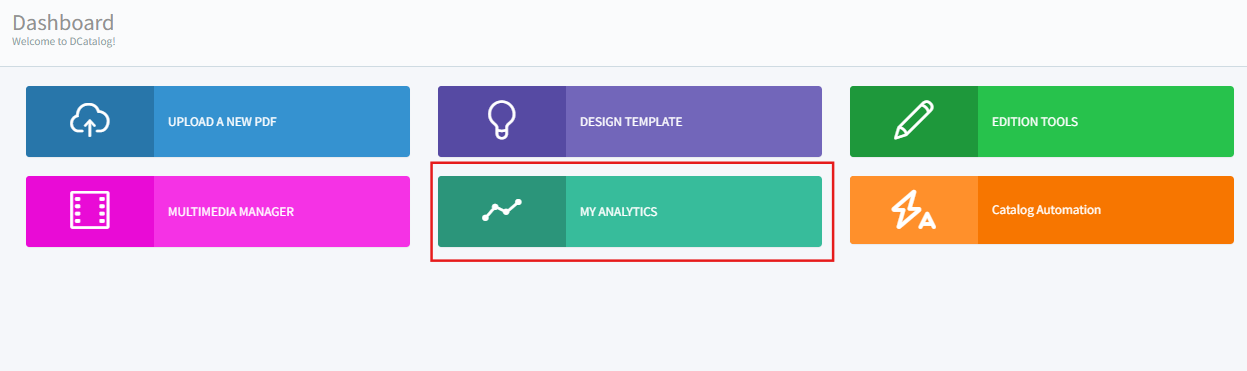
The Analytics window opens with two analytics types at the top:
DCatalog Analytics -DCatalog’s built-in analytics, covered in this article.
Google Analytics - connects your editions to your own Google Analytics property. Access its own article here.
2. Make sure the DCatalog Analytics tab is selected.
Choosing the data set to analyze
The "My Analytics" panel at the top of the window controls the data shown in every tab below it:
a. Template - filter the report to editions built on a specific template, or leave it on All.
b. Edition - focus on a single edition, or leave it on All to see totals across your account.
c. Date Range - pick the reporting period. Preset ranges include Today, Yesterday, Last 7 Days, Last 30 Days, This Month, Last Month, Last Quarter, Last 6 Months, Year to Date, and Last 12 Months, or choose Custom Range to select exact start and end dates on the calendar and click Apply.
d. Export - the Export button next to the date range downloads a report of the current selection. Each data table inside the tabs also has its own Export button.
The Analytics tabs
Below the filters, seven tabs break the data down from different angles: General Overview, Page View, Geo, Device, Search Keywords, Events, and Commerce.
General Overview
Your at-a-glance summary for the selected period. Across the top, key metric cards show:
a. Pageviews - total pages opened across your editions.
b. Visitors - the number of people who viewed your editions.
c. Events - total user interactions (zooms, clicks, downloads, and more , see the Events tab).
d. Searches - total searches performed inside your editions.
e. Avg Time Spent - the average time a visitor spends per session.
f. New vs Returning - a donut chart splitting visitors into first-time and returning users.
g. Each card also shows the percentage change compared with the previous period of the same length, so you can immediately see whether a metric is trending up (green) or down.
h. Beneath the cards, the Pageviews vs. Visitors chart plots both metrics day by day so you can spot spikes. For example, the day a new catalog or email campaign launched.
h. Beneath the cards, the Pageviews vs. Visitors chart plots both metrics day by day so you can spot spikes. For example, the day a new catalog or email campaign launched.
i. A daily breakdown table follows, listing Pageviews, Visitors, and Events for each day. Like all tables in Analytics, it can be sorted by any column, searched, paged, and exported.
Page View
Shows performance per edition. Each row lists a Document (click the link icon to open the edition itself) along with its Views, Visitors, and Avg time spent. Use this tab to compare editions against each other and see which catalogs hold users’ attention longest.
Click any edition row to select it, and a per-page breakdown for that edition appears at the bottom of the tab, showing Views and Visitors for each page.
Geo
Displays a world map of where your users are located. The darker the country, the more activity it generated. Use the + and − controls to zoom the map. Below the map, a table lists each Country with its Events and Visitors totals, and can be searched, sorted, and exported like any other table.
Device
Breaks your audience down by technology, in three views side by side:
a. Device Type - a donut chart splitting visitors across Mobile, Desktop, and Tablet.
b. Browser - visitors and percentage share for Safari, Chrome, Edge, Firefox, and others.
c. OS - visitors and percentage share for iOS, Mac, Windows, Android, Linux, and others.
This helps you confirm, for example, that a mobile-heavy audience is getting a great experience on small screens.
Search Keywords
Lists the exact terms users typed into the search bar inside your editions, with the number of Searches for each. Click any keyword row to see which documents that term was searched in and how often, and click the document name to open it. Click Hide Details to collapse the panel again.
Events
Tracks every user interaction beyond simply opening a page. Interactions are grouped into categories, each with a total event count:
a. Edition Views - the edition itself being opened.
b. Open Product Popup - users opening product detail popups.
c. Open URL Link - users opening general links.
d. Zoom In - zooming in on a page.
e. Table of Contents Links Clicked - navigation through the Table of Contents.
f. Toggle Single/Double Page View - switching between one- and two-page layouts.
f. Button Click - clicks on interactive buttons placed in the edition.
g. PDFs Downloaded - PDF downloads from the viewer.
h. Links Clicked - clicks on links inside the edition.
i. Print - use of the print option.
g. Document - shows the catalog link. Click the document name to open the catalog where those events occurred, each with its own event count. Rows with a + can be expanded for a further breakdown.
Click any event in Category to see which documents those events occurred in and how often, and click the document name to open it. Click Hide Details to collapse the panel again.
Commerce
Shows users activity to shopping activity for editions with Order Form. For each document, the Commerce tab reports:
a. Visitors - people who viewed the edition.
b. Added to Cart - the number of add-to-cart actions taken from the edition, with the number of unique users who added items shown in parentheses (for example, 494 (303 users)).
c. ATC rate - the share of visitors who added at least one item to the cart (unique users who added to cart ÷ visitors). This is based on users, not on the number of add-to-cart actions.
d. Ordered - the number of orders placed, with the number of unique users who ordered shown in parentheses (for example, 95 (64 users)).
e. Cart conversion - the share of cart users who went on to order (unique users who ordered ÷ unique users who added to cart). It measures how many shoppers who added items completed an order, not orders as a share of all visitors.
If your editions don’t have commerce features enabled, or there was no shopping activity in the selected period, the tab shows "No data for this selection."