Enable Features
Features are options and tools that you can turn off and on in the toolbar and viewer for the best user experience for your particular users. To turn specific features on or off, press the check mark to turn it on, and press it again (it should just leave an empty box) to turn it off. Remember to save all changes by clicking Save Template.
To see all the features you can enable, go to Design Template
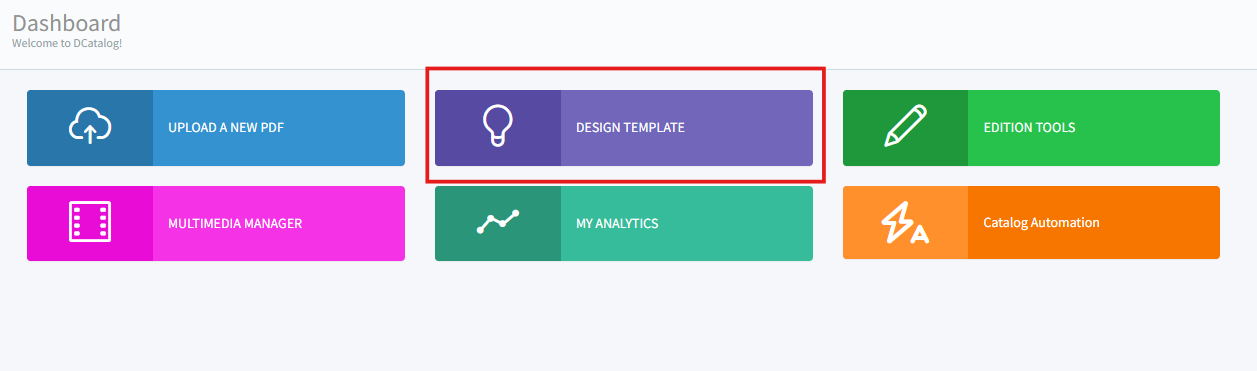
To see all the features you can enable, go to Design Template
Click Features tab and select a template

Below are the Features you'll see and their description:
Enable Library
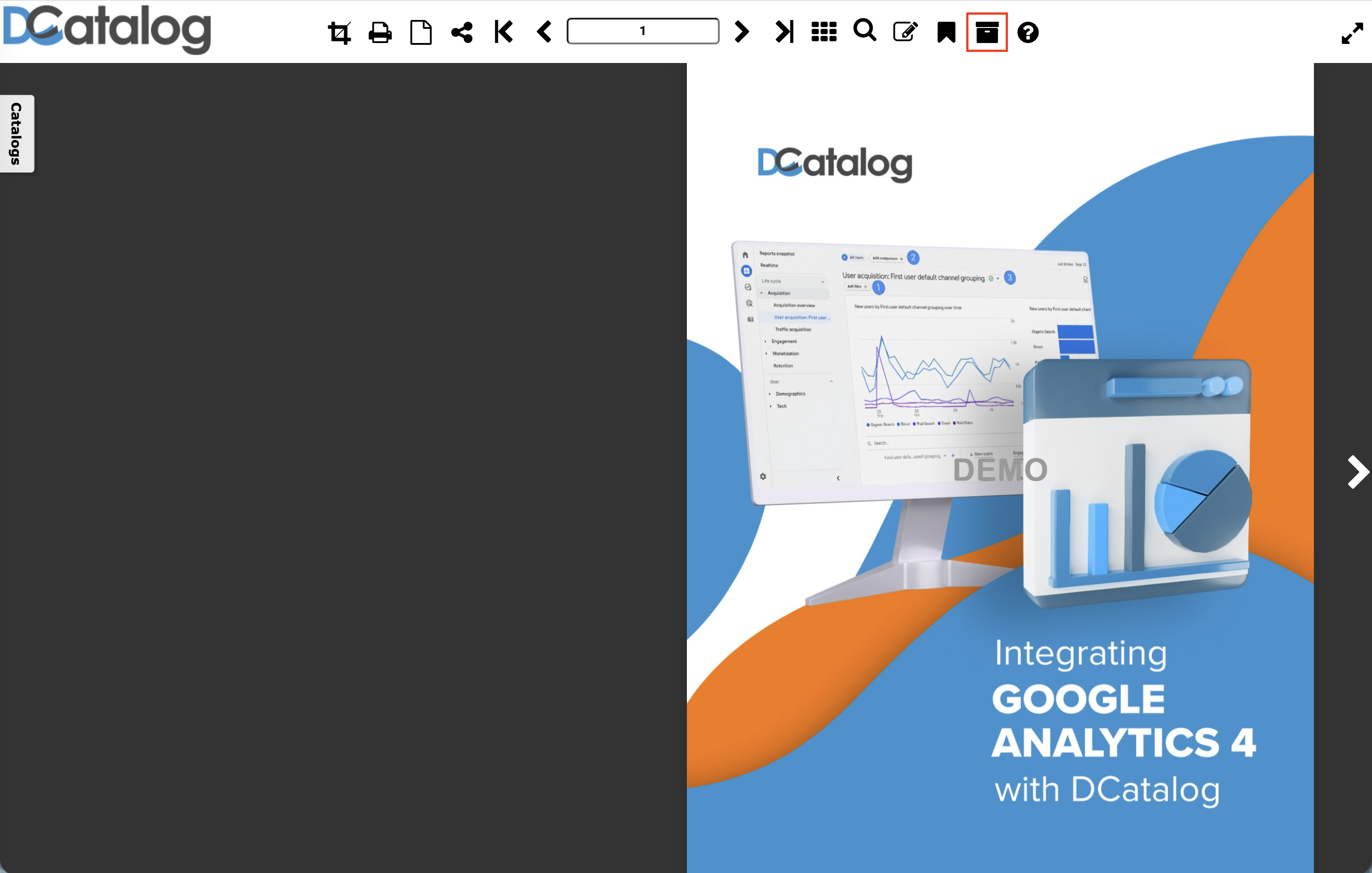
When you enable Library, all of the editions added under the same template will be available to the user at the click on a button. This includes any past or current editions.
In the viewer, Archive button appears as a file box in the tooltips on the toolbar. Once the user clicks on it, the editions will appear below, in the library space.
Enable Search
Enabling search allows the user to easily search for a word, phrase, product or any term, within the digital edition. The user will click on the magnifying glass icon to activate the search.
On the left-hand side, a Search option menu will pop up, where the search term can be entered and all results displayed.
Enable Full Screen
Enable full screen allows the user expand the edition to full screen. The button is on the top right of the catalog, and is a square with an arrow inside.
Enable Print
Enable print gives the reader to print the edition, either to paper or to a PDF. In the viewer, the icon is of a printer.
Enable Download PDF
Turning on this feature enables the user to download the edition as a PDF. In the viewer, the icon is of an arrow pointing down.
Enable Switching Page Mode
Clicking this button will enable your users to switch the page view in the viewer. Instead of double pages, they can look at it as a single page.
Enable time Auto Flip
This option allows you to automatically flip the pages of your digital catalog at the exact interval you configure.
Enable Bookmarks For Client

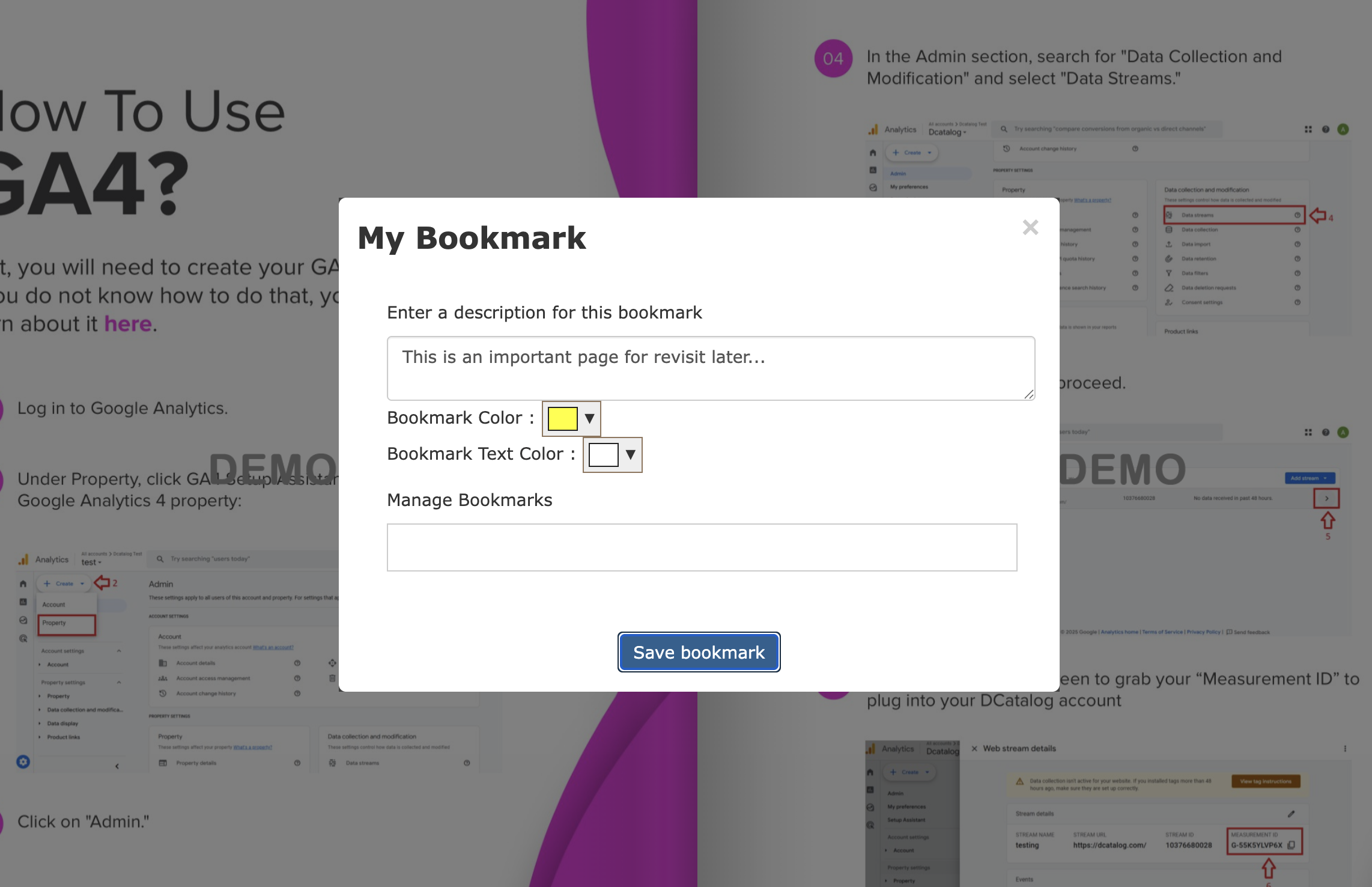
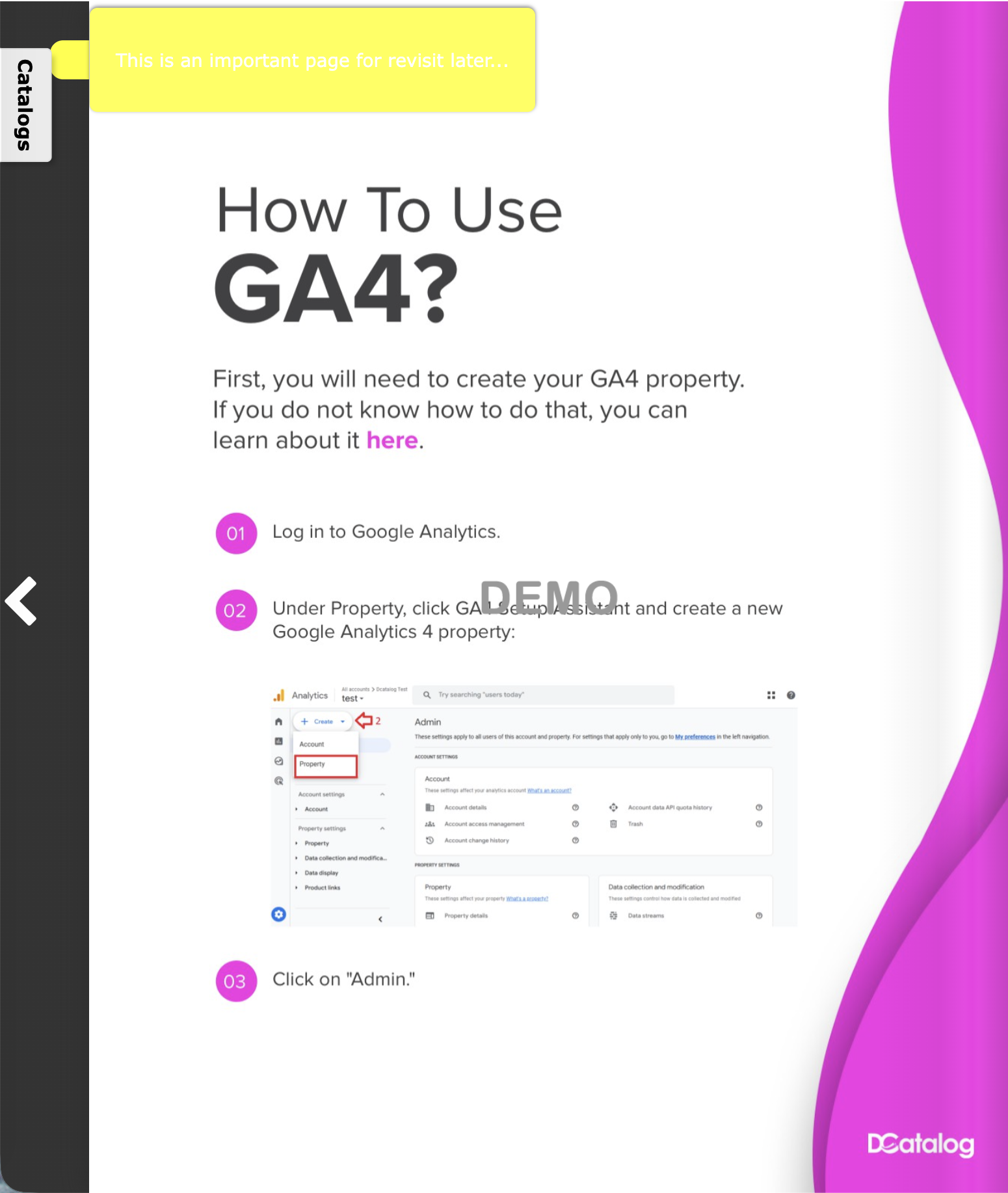
Once you activate this option, a new icon will appear in your template toolbar, as shown below.

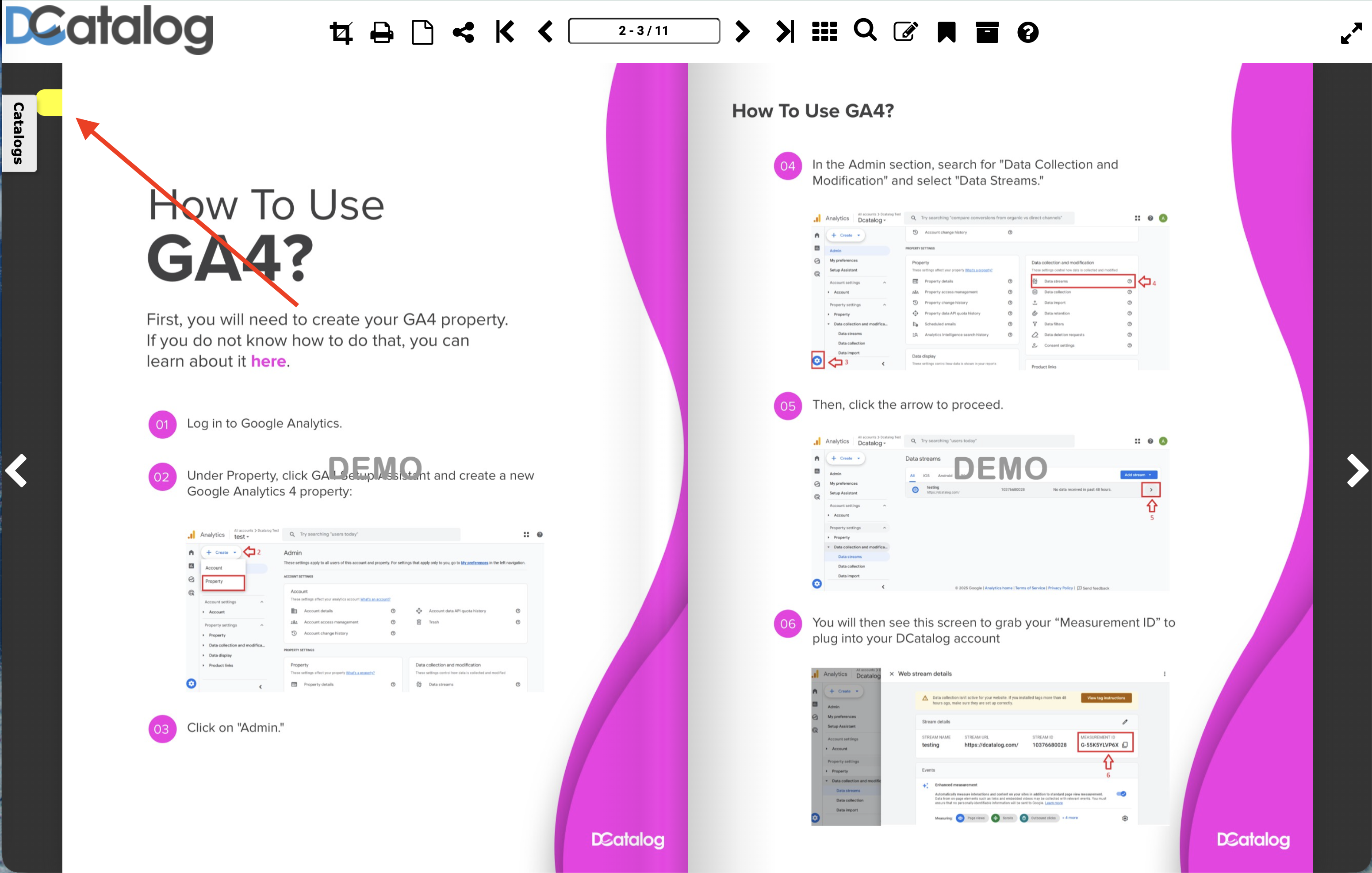
When you click this option, you’ll be able to add personalized bookmarks to any pages you choose. This can be extremely helpful when you need to quickly revisit important content in the future.
*Please note that these bookmarks are stored locally in your browser. If you clear your browser data, the saved bookmarks will be removed.
Enable Notes
The notes section allows a user to add notes to an edition. The notes are only visible to the individual user and are saved in his/her cache. To add a note, click the notepad icon in the viewer's tooltip: 
A box on the left-hand side will pop up:
Click "Add", then click the mouse on the page where you want to add the note:
When the note writing is complete, click the downward pointing arrow to save the note. It will revert to an icon on the page that looks like paper:
To retrieve the note, click the icon and the box will pop up with the notes inside. To delete the note, simply click the trashcan icon in the upper right corner.
Enable Share
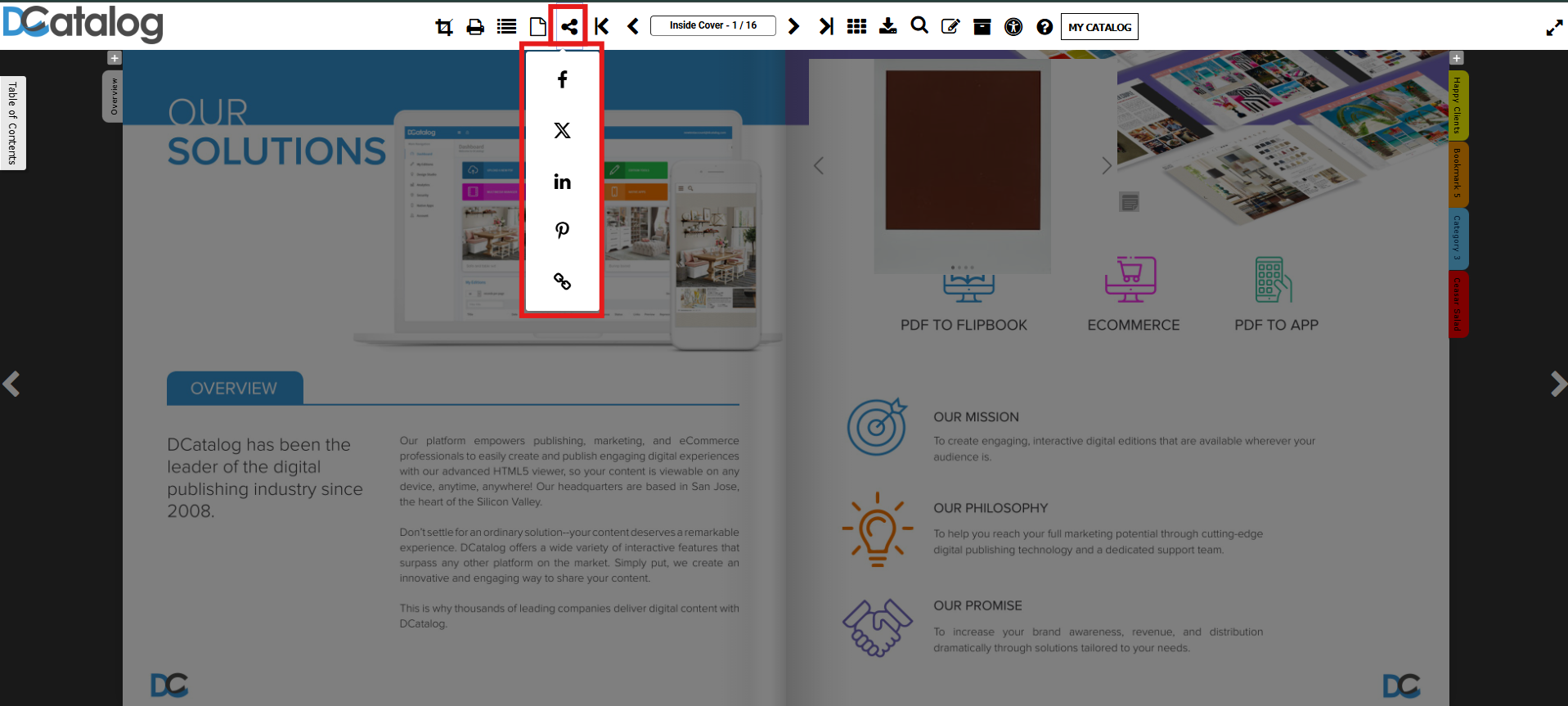
When the Share button is enabled, users can share the catalog directly to Facebook, X, LinkedIn, or Pinterest, or copy a shareable link using the standard share icon in the viewer toolbar.
Enable Crop
When the crop button tool is enabled, the user can crop a section of the page in the edition, or the whole page and looks like a square with a diagonal line through it. This is to crop a certain part of your edition.
Once a section of the edition is cropped, it can be shared, printed or downloaded.
Enable Zoom Controls
Enabling or Disabling Zoom Controls allows you to control the user's ability to zoom in and out of a section of the edition.
Enable Index by Search Engines
Enable Index by Search Engines allows you to turn on advanced search so that your users can search by a term or phrase to narrow results.
This will help your users find information in your edition quickly.
Enable Thumbnails
Enabling thumbnails allows the user to scroll through a bank of thumbnail images to land on the page he/she wants to be on. It will create a 9 dot icon in the toolbar.
And thumbnails images will be created at the bottom of the page:
Enable Page Shadow
Enabling the Page Shadow allows you to cast a shadow over the middle of the digital edition, giving it a familiar look to a book or magazine.
Enable ADA
Once this option is selected, ADA-compliant text is enabled. For more details and best practices, we recommend reviewing the article linked below. How to update the text using ADA compliance text?
Enable Flip Sound
Enabling this will let your users hear a sound of a flipping paper when they browse through the catalog pages. You can adjust the volume too!

Enable Rotate
Enabling this feature allows your users to rotate the catalog clockwise or counterclockwise.
Enable Fillable Form
If your PDF has fillable fields on it, the way to enable them in the digital catalog is to turn this feature. Enabling this will allow your users to type and fill in those fillable fields.

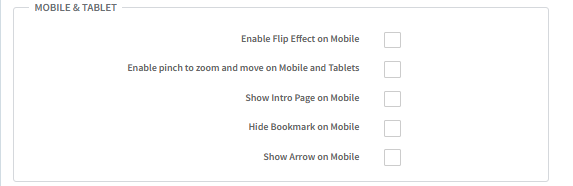
Mobile and Tablet Features
Mobile and Tablet Features
Enable Flip Effect on Mobile
Enable this feature if you want your mobile users to see the flipping effect rather than just seeing the page move right or left.
Enable pinch to zoom and move on Mobile and Tablets
Note that when this is enabled, the flip effect on Mobile cannot be enabled.
Show Intro Page on Mobile
If you want to show the Intro Page you've added in mobile version too, you can enable this feature.
Hide bookmark on the Mobile
Check this box if you do not want your added bookmarks to show on mobile version.
Show Arrow on Mobile
Mobile users won't see the arrows left and right unless this feature is enabled.